Best St. Patrick's Day Wallpapers for iPhone
Festive St. Patrick's Day wallpapers for iPhone — greens, shamrocks, live motion, AI originals, and Depth Effect picks framed around the clock and widgets.
St. Patrick’s Day is a quick, cheerful reason to go green for a day or two. The category is more flexible than the cartoon shamrock suggests — from playful clover and gold to genuinely lovely emerald-and-Irish-landscape looks — and the best pick is the one that feels like a deliberate choice rather than a novelty. This guide covers the St. Patrick’s looks worth running, the greens that hold up on a phone display, and how to set one so the iOS clock and widgets stay readable.
Pick your shade of green
The holiday spans a wider range than you’d think. Roughly from playful to refined:
- Clover and shamrock. Three- and four-leaf clovers, patterns, scatter. Cheerful, but keep the cluster low so the top stays calm.
- Gold and luck. Pots of gold, coins, rainbows, sparkle. Festive and fun; best kept to the lock screen so it doesn’t fight your icons.
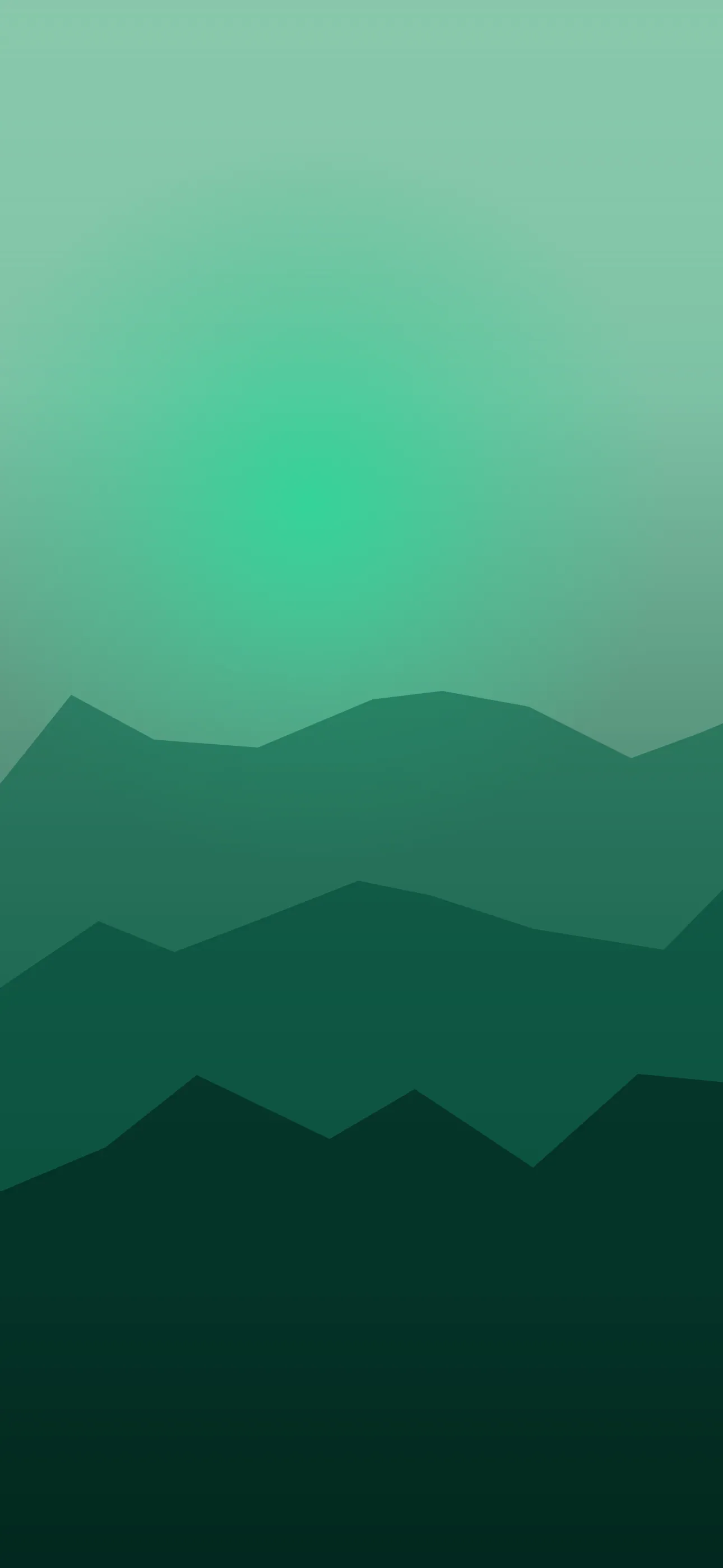
- Emerald landscape. Rolling Irish hills, mossy stone, misty green valleys. The grown-up pick — atmospheric and lock-screen-friendly thanks to open sky. Overlaps with the nature library.
- Green minimal. A single clover or flat emerald gradient with lots of negative space — clean and widget-friendly.
- Deep and moody. Dark forest green on near-black — pairs well with OLED and the dark look.
Greens that hold up on a screen
A bright, saturated green is the signature, but full-frame neon green can clash badly with colorful Home Screen icons, so it usually looks best confined to the lock screen. The more flexible options are an emerald-to-deep-green gradient or a misty landscape, both of which give the white iOS clock a clean backdrop. The dark forest-green-on-black end of the range looks especially good on OLED Pro iPhones, where true blacks let a single bright clover or gold accent pop. For one wallpaper across both screens, a deeper green flatters your app icons better than bright lime.
Composition around the clock and Dynamic Island
iOS centers the time across the upper-middle of the lock screen, with the date and widgets just above. Emerald landscapes win because the soft sky up top gives the clock an even backdrop. For clover-heavy or gold imagery, keep the busy detail in the bottom two-thirds. On Dynamic Island iPhones, leave the very top edge a little clear so the pill doesn’t crop into a clover or coin you wanted to keep.
Resolution
Match your device’s native resolution so clover veins and gold-coin detail stay crisp. On the larger Pro and Plus models that’s 1290 x 2796 or higher; matching avoids soft, smeared detail.
A note on motion
A subtle live effect suits the day — slowly drifting clover, a soft sway of green meadow, gentle sparkle on gold. It plays when you touch and hold the lock screen, and restraint is key: slow and sparse reads as festive, while heavy motion looks busy behind notifications. Browse the live wallpaper options for meadow and sparkle loops tuned to stay subtle.
Depth Effect and OLED
A wallpaper with one clear foreground subject — a single four-leaf clover, one gold coin, a lone sprig — can trigger iOS Depth Effect, lifting it in front of the clock for a layered 3D look. The deep-green-on-black images play to OLED Pro iPhones: true blacks switch those pixels fully off, giving inky shadows that make a bright clover or gold glow, plus a little battery savings.
Generate a one-of-one
Want a St. Patrick’s wallpaper nobody else has? The AI generator handles green prompts well — try single four-leaf clover, soft bokeh, deep green background, empty space at top or misty Irish hills, emerald green, soft morning light, open sky. Generate a few and crop so the clock has room. For more on phrasing prompts, see how to use an AI wallpaper generator.
How to set and swap it
Save the image, touch and hold the lock screen, tap the plus button, choose Photos, and position the crop so the clock lands on a calm area. Apply Depth Effect if offered. Because it’s such a short holiday, the saved-lock-screen feature is your friend: iOS keeps several lock screens at once, so you can run the green look for the day and tap your everyday wallpaper back in the next morning — nothing to delete, nothing to redo.
Wallpaper Hub bundles a seasonal library, live meadow loops, the AI generator, and an editor in one free app.
Get Wallpaper Hub on the App Store
FAQ
Will a bright green wallpaper clash with my apps? It can on the Home Screen. Confine saturated green to the lock screen and use a deeper, calmer green where your app icons live.
Do I have to delete it after the holiday? No. iOS saves multiple lock screens, so touch and hold the lock screen and swipe back to your everyday one with a single tap.
Wallpapers from Wallpaper Hub
Full gallery