Best Geometric Wallpapers for iPhone
A guide to geometric wallpapers for iPhone — clean shapes, palette tips, clock and widget contrast, native resolution, and how to generate a crisp lock screen.
Geometric wallpapers are the clean, modern end of the spectrum — sharp shapes, deliberate spacing, and a sense of order that makes a home screen feel designed rather than decorated. The look ranges from strict minimalism to dense, kaleidoscopic pattern, but the common thread is precision. The main thing to get right on a phone is keeping the time and widgets legible against shapes that can otherwise compete for attention. This guide covers what defines the geometric look and how to compose or generate one that stays crisp on an iPhone.
What defines the geometric look
Geometric design is built from clean shapes — lines, triangles, circles, hexagons, grids — arranged with intent. The defining qualities are sharp edges, repetition, symmetry or deliberate asymmetry, and flat or smoothly-shaded color. It’s the opposite of organic: where watercolor bleeds, geometric snaps to a grid. That precision is exactly why it photographs well on a high-resolution screen, where crisp edges look razor-sharp.
Sub-styles within geometric
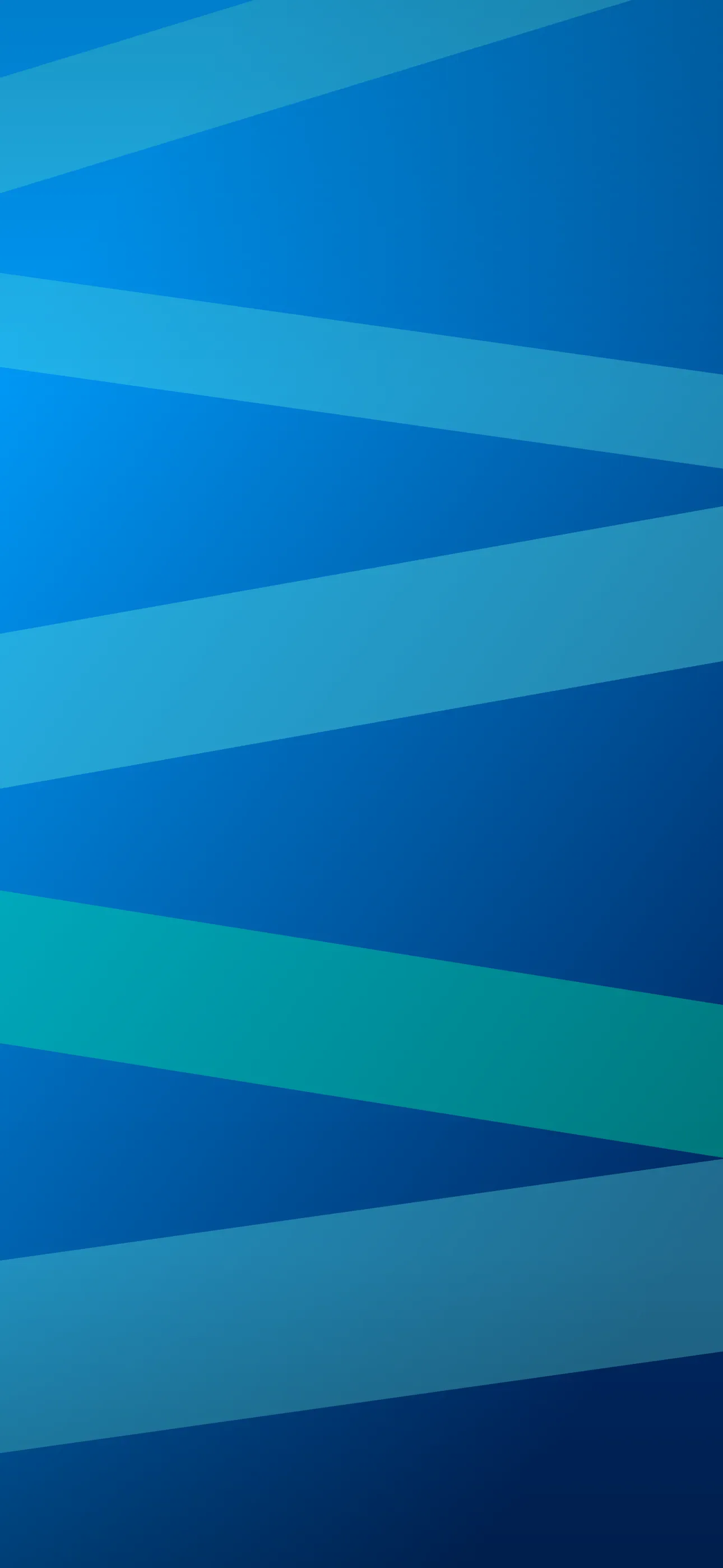
- Minimal geometric — a few shapes on a plain ground with lots of negative space.
- Low-poly — faceted triangular surfaces forming subjects or gradients.
- Isometric — 3D-looking shapes and tiles drawn on a fixed angle.
- Pattern and tessellation — repeating tiles, hexagons, or Islamic-style geometry.
- Bauhaus and retro geometric — bold primary blocks, circles, and arcs.
A nice pairing is one minimal piece with open space for the lock screen and one denser pattern for the home screen.
Palette and structure
Geometric looks lean on a tight palette — often two or three colors plus a neutral. Monochrome blues for calm, warm earth tones for a retro feel, black and white for sharp contrast, or a bold Bauhaus trio of red, yellow, and blue. Because the shapes are flat, the color does the emotional work, so choosing a restrained palette keeps the result elegant rather than noisy. Smooth gradients within shapes can soften an otherwise hard look if you want something gentler.
Composing around the clock and Dynamic Island
Hard edges and high contrast can clash with white clock text, so plan the layout:
- Keep a calmer, lower-contrast zone in the upper-center so the clock doesn’t sit on a busy seam between two bright shapes.
- Push the densest pattern into the lower two-thirds, around the widgets, so it frames the UI.
- Leave a clean, plain area behind the Dynamic Island so the cutout doesn’t bisect a shape awkwardly.
- Minimal layouts with empty space at the top are the easiest of all — the clock simply drops into the gap.
Depth Effect, OLED, and widget contrast
Geometric wallpapers are usually flat patterns, so they generally won’t trigger the layered Depth Effect — that effect wants a single clear subject like a planet or a rose, not an even tiling. So pick geometric for its crispness, not for layering; our Depth Effect explainer covers the difference. On the OLED front, a geometric design on a true-black ground can look superb, since pure-black pixels switch off and the bright shapes seem to float — see the dark style collection. For widget contrast, the danger is a high-contrast edge under the widget row; keep a flatter area there or adjust it in the editor.
Resolution and crisp edges
Geometric art lives on its edges, and edges are exactly what soften when an image is upscaled from something too small — clean lines turn fuzzy and the whole thing loses its snap. Start from a wallpaper sized for your iPhone (1290x2796 on the current Pro Max) so every edge stays razor-sharp.
Generating and setting a geometric lock screen
In Wallpaper Hub you can browse geometric, abstract, and minimalist wallpapers framed for iPhone, or generate your own:
- Use the AI generator — try “minimal geometric, two muted shapes on cream, lots of empty space at top” or “low-poly mountain, blue gradient, faceted triangles, clean area for clock.”
- Open the editor to reposition the pattern, calm the clock zone, or crop to the exact screen size.
- Geometric overlaps with the abstract and minimalist collections.
FAQ
Do geometric wallpapers work with Depth Effect? Usually not — flat patterns don’t give iOS a single subject to layer. Choose geometric for crisp edges, not for the 3D effect.
Why does my geometric wallpaper look fuzzy? Sharp edges blur when upscaled from a small image. Start from one sized for your iPhone so the lines stay crisp.
Get Wallpaper Hub on the App Store
Keep one minimal piece and one denser pattern on hand, and your home and lock screens stay clean, modern, and perfectly readable.
Wallpapers from Wallpaper Hub
Full gallery