Best Cool Wallpapers for iPhone
Five cool wallpapers for iPhone, from a sharp classic look to live motion, AI-made originals, and high-contrast OLED picks that frame the clock cleanly.
“Cool” is a feeling more than a category — it’s the wallpaper that makes someone glance at your phone twice. Usually that means bold, a little edgy, high-contrast, and confident: neon, carbon, chrome, deep space, sharp geometry. The challenge is that the same qualities that make these images striking can also make them busy, so the real skill is choosing one that hits hard and still lets the iOS clock and widgets sit cleanly on top. Here’s how to do that.
What reads as “cool” on a lock screen
A few directions consistently land:
- Neon and cyberpunk. Glowing signs, rain-slick streets, magenta-and-cyan grading. High energy; keep the brightest neon out of the clock zone.
- Dark tech and carbon. Matte black surfaces, hex patterns, subtle blue accents. Understated and sharp — looks expensive.
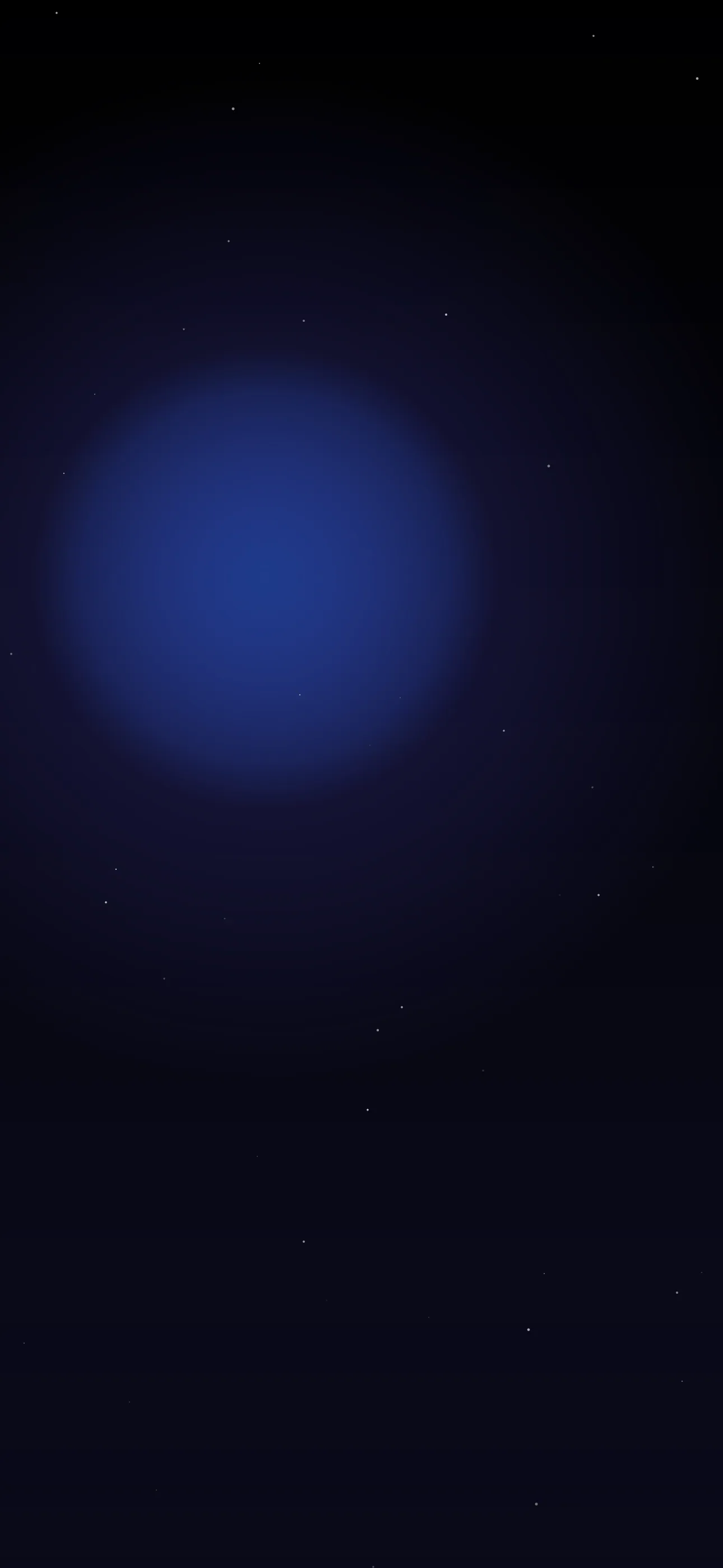
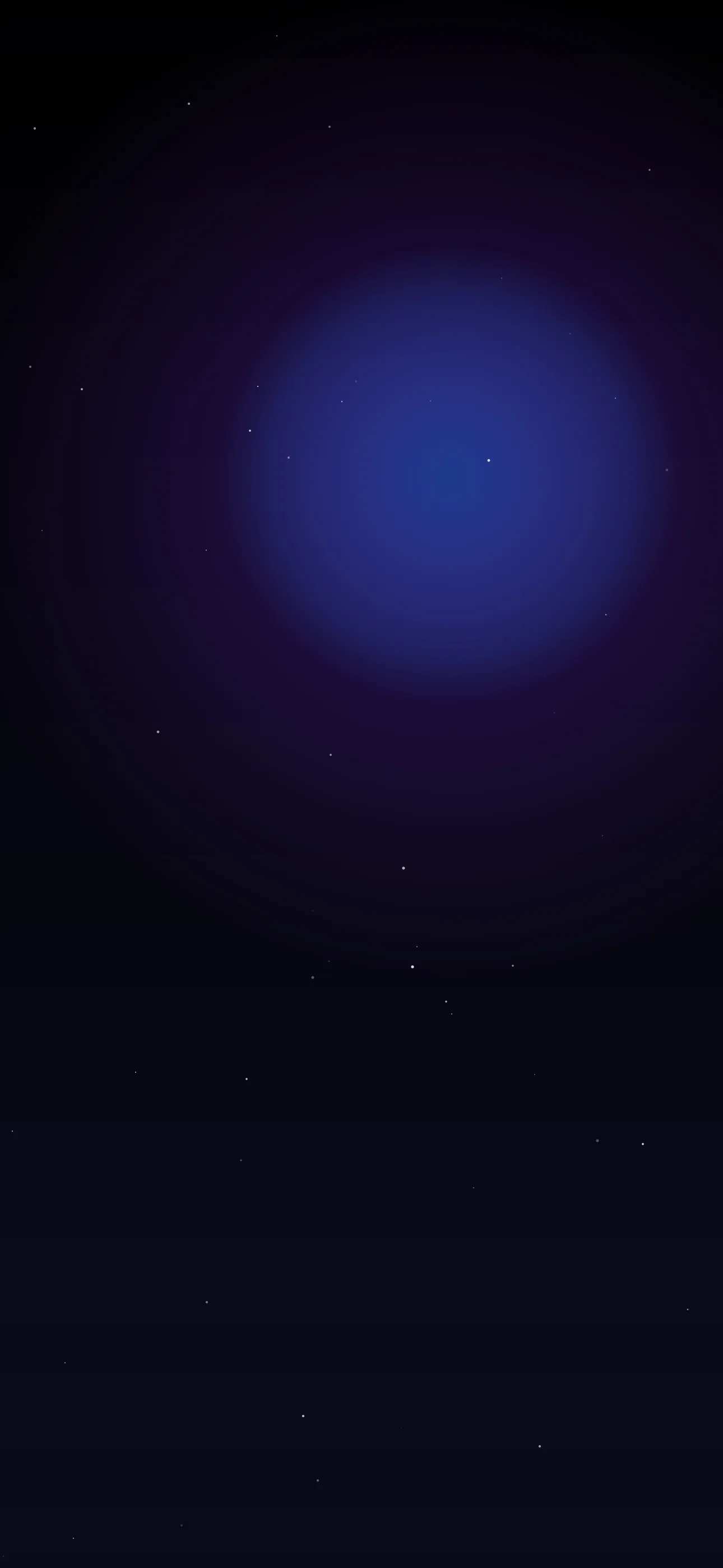
- Space and astrophotography. Nebulas, the Milky Way, a planet on the edge of frame. Deep blacks plus one bright focal point.
- Chrome and liquid metal. Reflective 3D blobs and type, Y2K-adjacent shine. Pairs with the Y2K aesthetic.
- Bold abstract and geometric. Hard shapes, aggressive gradients, glitch art — overlaps the abstract world but turned up.
The contrast trap
Cool wallpapers love high contrast, and high contrast is exactly what can ruin clock legibility. iOS stacks the white time digits across the upper-middle of the screen. Drop a blazing neon sign or a bright nebula core right there and the time fights for attention. The fix is composition: put the loud element low or off to one side, and let the top settle into a darker, quieter zone. Most genuinely cool wallpapers already do this — a single bright focal point against a dark field reads as more confident than wall-to-wall noise anyway.
Set art at native resolution — 1290 x 2796 on the 6.7-inch Pro and Plus — because glow, fine glitch detail, and starfields all degrade fast when an image is upscaled. It’s also worth checking the wallpaper behind your Home Screen icons, not just on the lock screen: a heavily saturated neon image can make a colorful icon grid feel chaotic, while a dark field with one accent lets the icons stand out. Cool, in practice, usually means restraint with one bold move — not maximum noise everywhere.
OLED is where cool wallpapers shine
Most cool aesthetics — space, cyberpunk, dark tech — are built on deep blacks, which makes them ideal for OLED Pro iPhones. In true-black regions the pixels switch fully off, so blacks are genuinely inky rather than dark grey, neon and starlight pop harder against them, and you save a sliver of battery. If you want maximum impact, start in the dark collection and look for images where a single bright accent floats on near-black.
Depth Effect and motion
A clean foreground subject on a simple background — a planet, a chrome object, a lone figure in a neon alley — can trigger iOS Depth Effect, lifting it in front of the clock for a layered 3D look. It’s a great fit for the genre because so many cool images already isolate one hero element. Browse Depth Effect picks if that’s the effect you’re after.
Motion takes cool to another level. Flickering neon, slow-drifting stars, a pulsing glow, or rolling glitch noise all read as high-tech and premium, and play when you touch and hold the lock screen. Keep the motion subtle — a slow pulse looks intentional, a frantic loop looks cheap. The live wallpaper collection has cyberpunk and space loops tuned to stay tasteful.
Build your own
Cool is a strong category for the AI generator, because it thrives on stylized, atmospheric scenes rather than literal accuracy. Try prompts like cyberpunk alley at night, neon reflections on wet ground, vertical, dark sky at top or lone astronaut, deep space, single planet, minimal, pure black background. Generate a few, then tune the crop and contrast in the editor so the bright element clears the clock.
To set it: save the image, touch and hold the lock screen, tap +, choose Photos, position the crop, and apply Depth Effect if offered.
You’ll find a deep bench of bold, high-contrast picks in the wallpaper library, plus the live versions, generator, and editor all in one free app.
Get Wallpaper Hub on the App Store
Keep going: Best Dark Wallpapers for OLED iPhones and What is the Depth Effect on iPhone?.
Wallpapers from Wallpaper Hub
Full gallery