Best Dark Wallpapers for OLED iPhones
Dark wallpapers built for OLED iPhones, with true-black regions that save a little battery, plus live, AI, and Depth Effect variations to match.
Dark wallpapers are the one category where the display technology changes what you should pick. Every iPhone Pro since the iPhone 14 Pro, and the iPhone 15 and 16 across the lineup, uses an OLED panel, and OLED has a property LCDs never had: in true-black areas, each pixel switches fully off. That means a well-made dark wallpaper isn’t just darker — it’s genuinely lights-out black, with no backlight glow, plus a small real battery benefit and a striking sense of depth. This guide is about choosing dark wallpapers that exploit that, not just dim ones that waste it.
True black vs. dark grey
Here’s the distinction that matters most: #000000 true black turns OLED pixels off, while a dark grey like #1a1a1a keeps them on at low power. Visually, true black has no glow at all — the wallpaper appears to blend into the bezel, especially in a dim room — and only true black delivers the battery saving, since off pixels draw essentially nothing. So when you’re picking a dark wallpaper for an OLED iPhone, look for real, deep blacks in the background, not a uniform charcoal wash. The deepest options live in the dark collection.
What makes a great OLED dark wallpaper
The most effective dark wallpapers pair vast true-black space with a single bright focal point. A few looks that nail it:
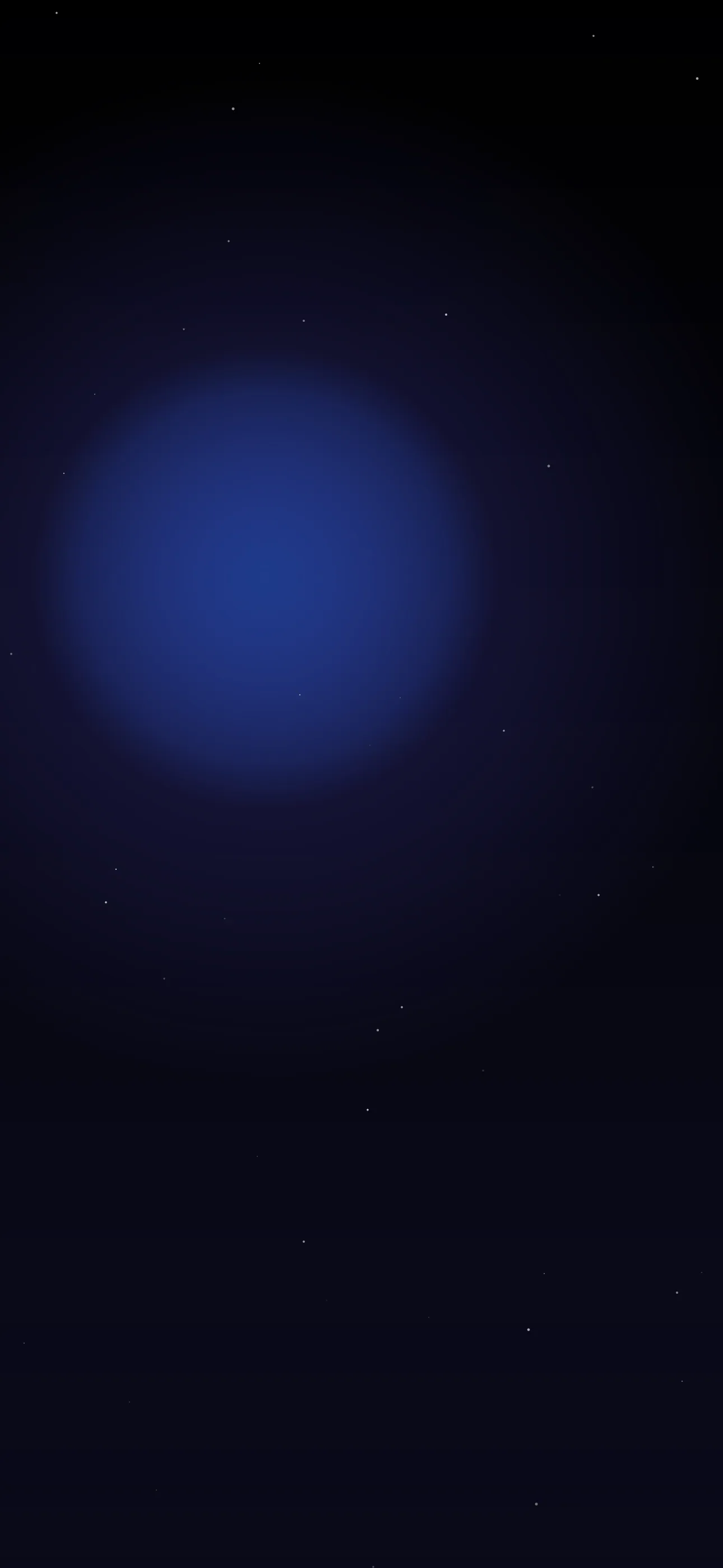
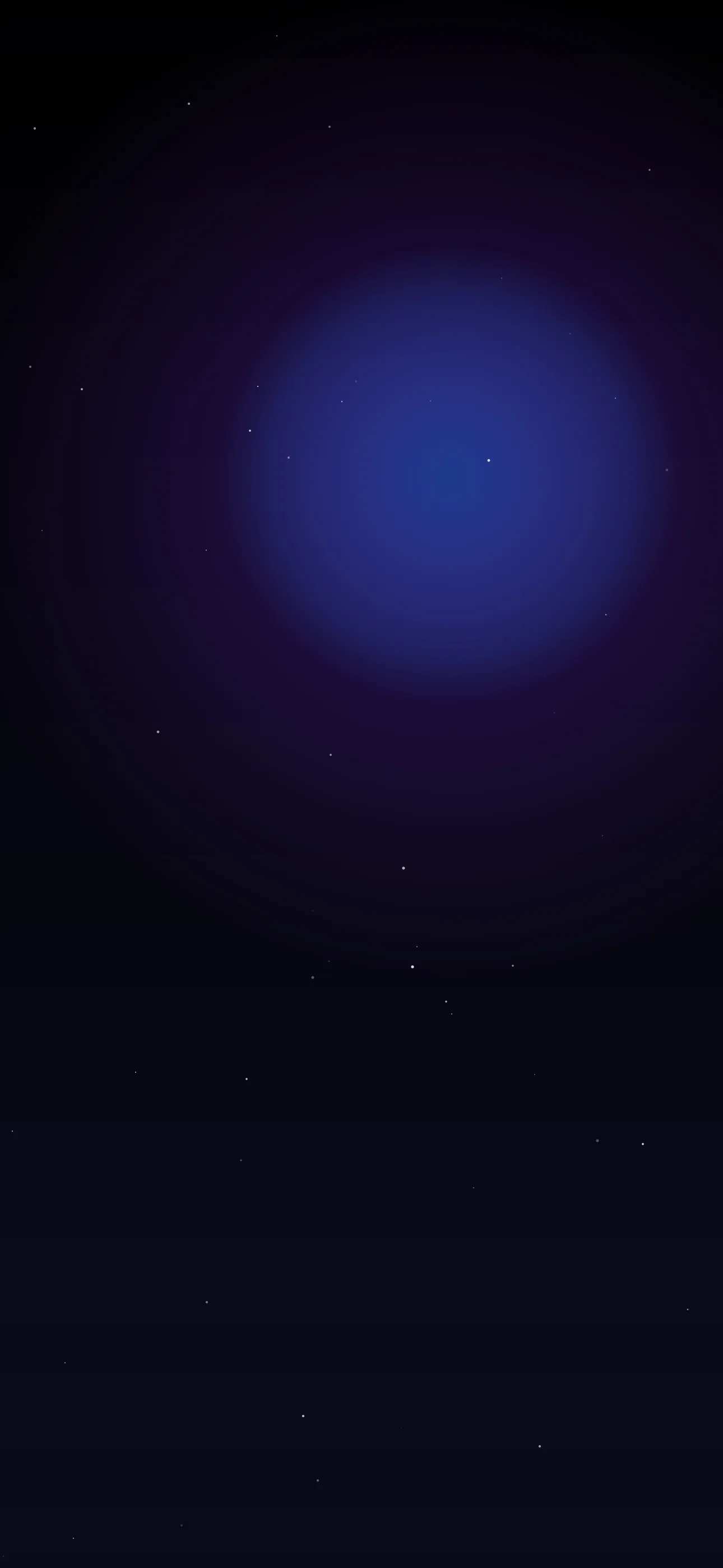
- Deep space. A planet or moon on the edge of frame, a thin nebula, scattered stars on pure black. The archetypal OLED wallpaper.
- Single-light minimalism. One glowing object, line, or orb floating on black — quiet and modern, overlaps the minimalist aesthetic.
- Neon-on-black. A thin neon shape or sign against darkness. Cyberpunk energy without a busy scene.
- Dark abstract. Smoke, liquid metal, or a deep gradient fading to black at the edges — see the abstract corner.
- Moody nature at night. A silhouetted ridge under stars, a single lit window in darkness.
Composing around the clock
iOS stacks the white time digits across the upper-middle of the lock screen, and on a mostly-black wallpaper they read beautifully — high contrast, crisp, no competition. The thing to avoid is putting your one bright element right in the clock zone, where it would fight the time. Keep the focal point low or to one side and let the top stay true black; the clock then floats cleanly on the dark, which is exactly the look people want from an OLED wallpaper.
Set art at native resolution — 1290 x 2796 on the 6.7-inch Pro and Plus — and prefer sources that are genuinely black rather than a compressed JPEG with grey banding in the dark areas, which spoils both the look and the pixel-off benefit.
Depth Effect and Always-On
A bright subject on a clean black field is an ideal Depth Effect candidate — iOS can lift it in front of the clock for a layered 3D look. Dark wallpapers also pair well with the Always-On Display on iPhone 14 Pro and later: a near-black wallpaper keeps the dimmed standby screen subtle and power-light. If the layered look matters, browse Depth Effect picks.
Motion, done darkly
Dark scenes are forgiving hosts for subtle motion — slowly drifting stars, a faint pulsing glow, smoke curling through black. As live wallpapers these play when you touch and hold the lock screen, and because most of the frame stays off, they feel premium without draining the battery you saved. Keep movement slow and sparse; on a dark wallpaper, a little goes a long way.
Make your own true-black wallpaper
The AI generator is great for this when you ask for it explicitly. Prompts that include pure black background are key — try single glowing planet, deep space, scattered stars, pure black background, vertical or minimal neon line on pure black, lots of empty space at top. Generate a few, then use the editor to deepen the background to true black and confirm the focal point clears the clock.
To set it: save the image, touch and hold the lock screen, tap +, choose Photos, position the crop so the bright element sits below the clock, and apply Depth Effect if offered.
Wallpaper Hub keeps a deep OLED-ready library plus live versions, the AI generator, and the editor in one free app.
Get Wallpaper Hub on the App Store
Related: Best Cool Wallpapers for iPhone and What is the Depth Effect on iPhone?.
Dark wallpapers in the app
All dark